Ms Paint Mastery Course

📑 10 slides 👁 26 views 📅 2/2/2026
0.0 (0 ratings)

Introduction to MS Paint

MS Paint is a simple yet powerful graphics tool included with Windows.

Introduction to MS Paint
2

Basic Tools Overview

  • Explore essential tools like brush, pencil, eraser, and fill bucket.
  • Understand the color palette and how to customize it for your projects.
  • Learn selection tools for cutting and moving parts of your image.
Basic Tools Overview
3

Advanced Drawing Techniques

  • Master freehand drawing with precision using zoom and grid features.
  • Create smooth lines and shapes using the curve and line tools.
  • Use layers by copying and pasting elements to build complex designs.
Advanced Drawing Techniques
4

Color Theory in MS Paint

  • Learn how to mix and match colors using the RGB color model.
  • Create gradients and shading effects with the airbrush tool.
  • Use the eyedropper tool to sample colors from existing images.
Color Theory in MS Paint
5

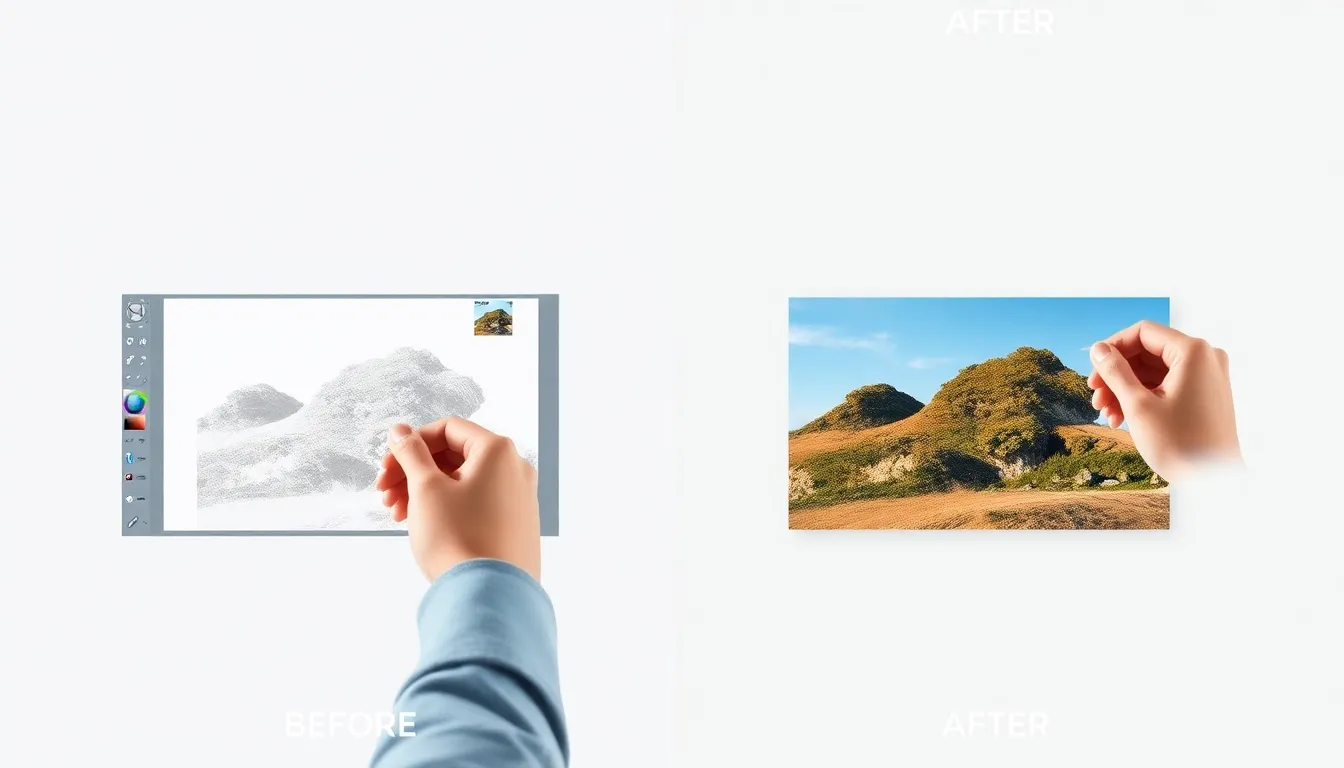
Editing and Retouching

  • Resize, rotate, and flip images to perfect your compositions.
  • Remove unwanted elements using the eraser and selection tools.
  • Adjust brightness and contrast to enhance your artwork.
Editing and Retouching
6

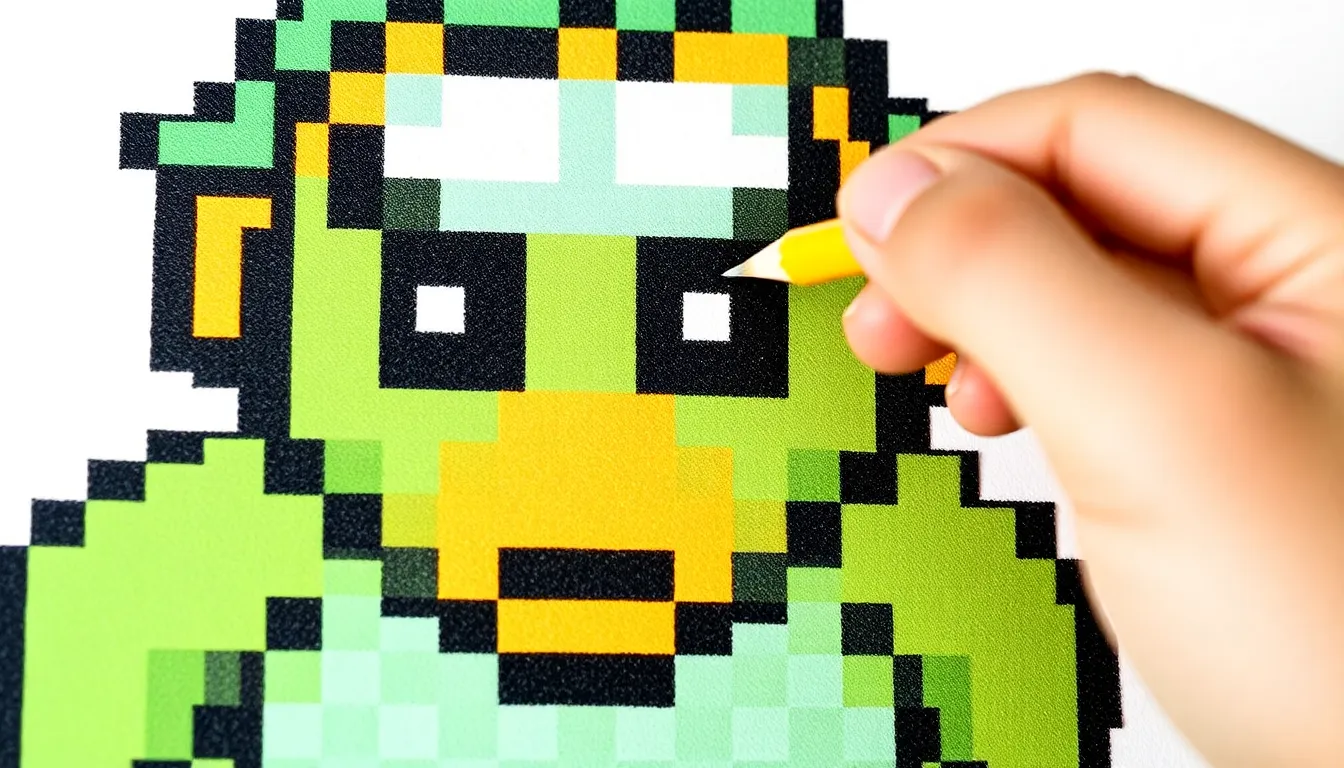
Creating Pixel Art

  • Discover the basics of pixel art and how to create it in MS Paint.
  • Use the pencil tool at 1px size for precise pixel placement.
  • Learn to design sprites and icons with limited colors.
Creating Pixel Art
7

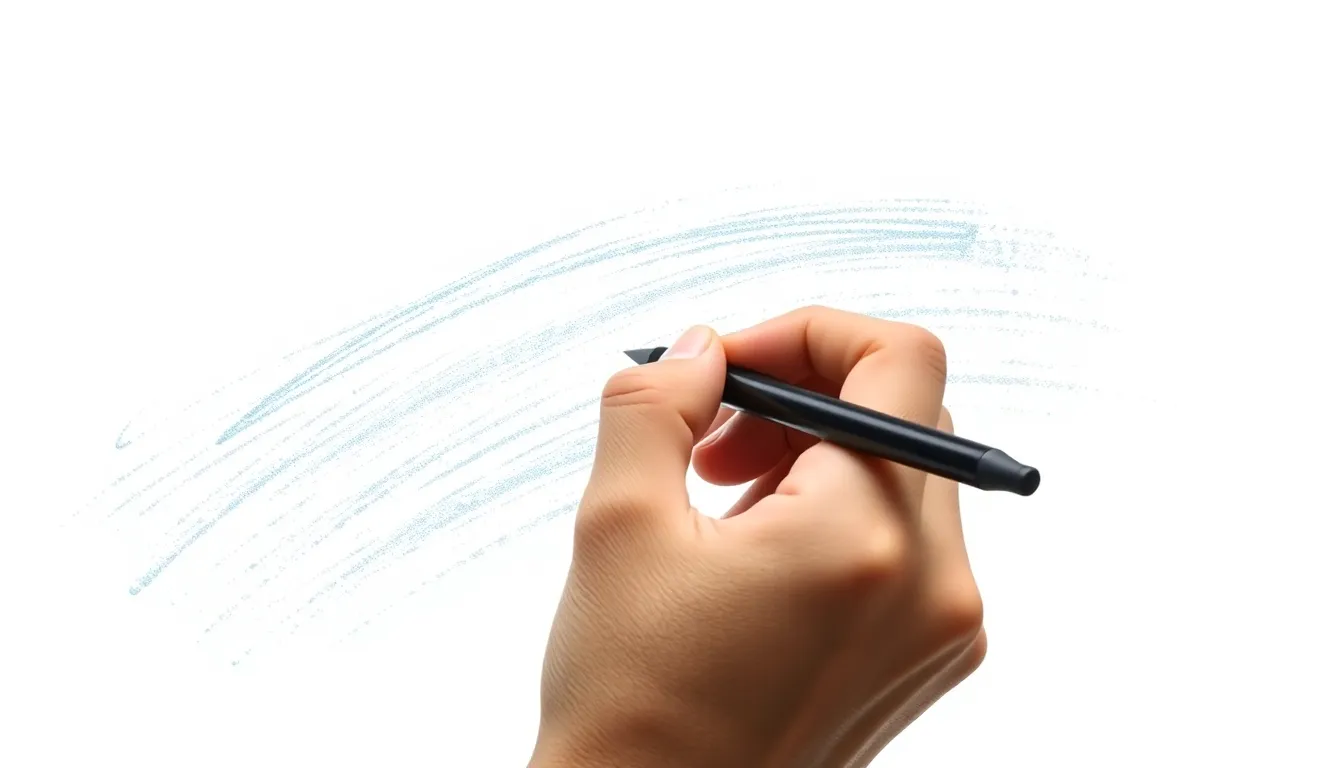
Custom Brushes and Textures

  • Create custom brushes by saving and reusing your favorite shapes.
  • Experiment with textures using the spray can and brush tools.
  • Combine tools to achieve unique artistic effects.
Custom Brushes and Textures
8

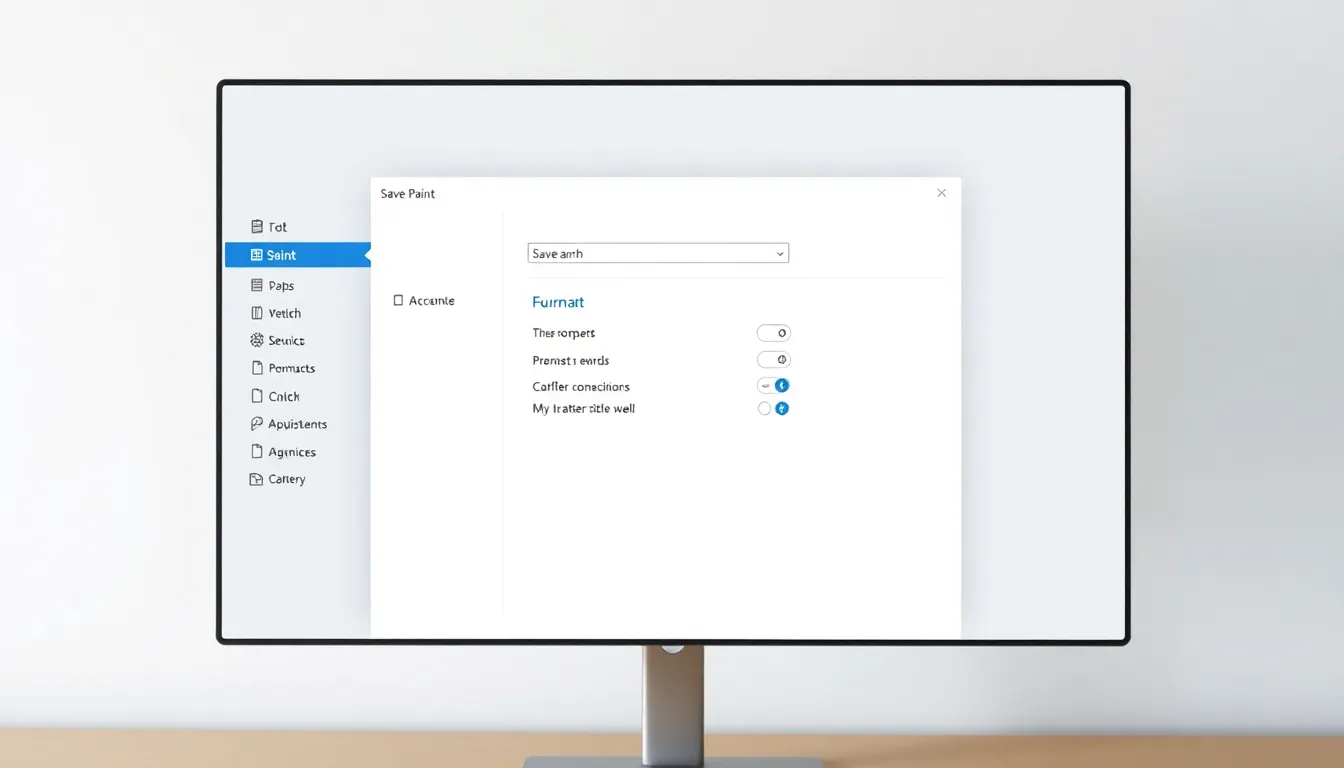
Saving and Exporting

  • Save your work in different formats like PNG, JPEG, and BMP.
  • Learn the pros and cons of each file format for various uses.
  • Optimize image quality and file size for sharing online.
Saving and Exporting
9

Fun Projects to Try

  • Design logos, banners, and simple animations using MS Paint.
  • Create digital collages by combining multiple images.
  • Challenge yourself with timed drawing exercises to improve speed.
Fun Projects to Try
10

Conclusion and Next Steps

  • Recap key tools and techniques covered in the course.
  • Encourage continued practice to refine your skills.
  • Explore online communities for inspiration and feedback.
Conclusion and Next Steps
1 / 10